Configuration
All settings are in Settings > Property Validator. Three tabs: Settings, Entities, Properties.
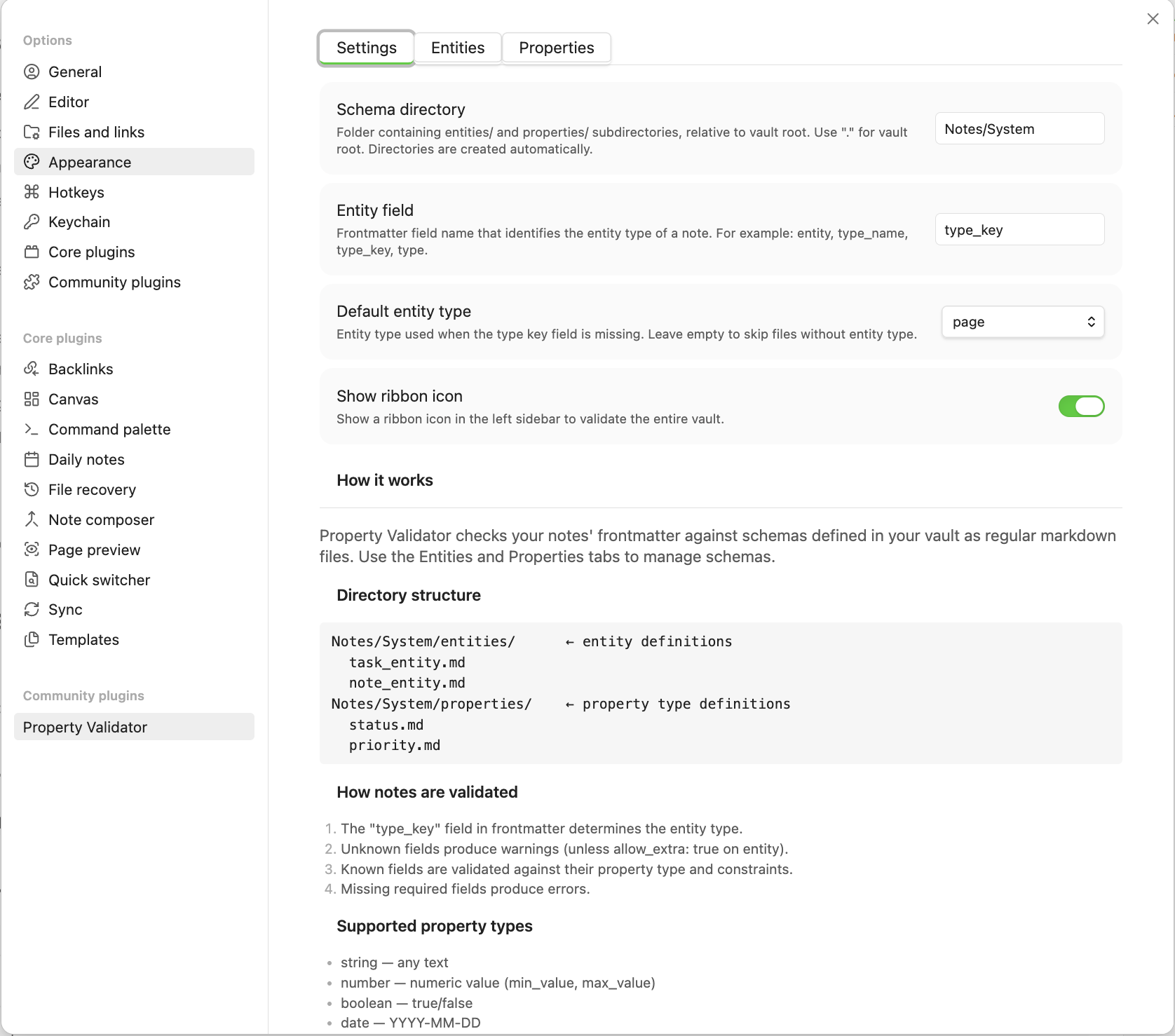
Settings
| Setting | Default | Description |
|---|---|---|
| Schema directory | . |
Folder with entities/ and properties/ subdirs, relative to vault root |
| Entity field | entity |
Frontmatter field that identifies a note's entity type |
| Default entity type | (empty) | Fallback entity type when the field is missing. Empty = skip |
| Show ribbon icon | off | "Validate vault" button in the left sidebar |
Tip
Set Schema directory to a dedicated folder like System to keep schema files separate from your notes.
Commands
| Command | Description |
|---|---|
| Validate current file | Validate the active note |
| Validate vault | Scan all markdown files |
| Show validation results | Open the results panel |
All available via Command Palette (Cmd/Ctrl + P).
Status bar
Shows the current note's validation state with a colored dot:
 Green — valid
 Yellow — warnings only
 Red — has errors
Click to open the results panel. Hidden when the active file has no entity type.
Reactive behavior
The plugin validates automatically:
- On file save (debounced 800ms)
- When switching files
- Schema cache refreshes when entity/property files change
Managing schemas
Tip
Schema files are regular markdown with YAML frontmatter. The UI and hand-editing are fully interchangeable — edit however you prefer.
Entities tab
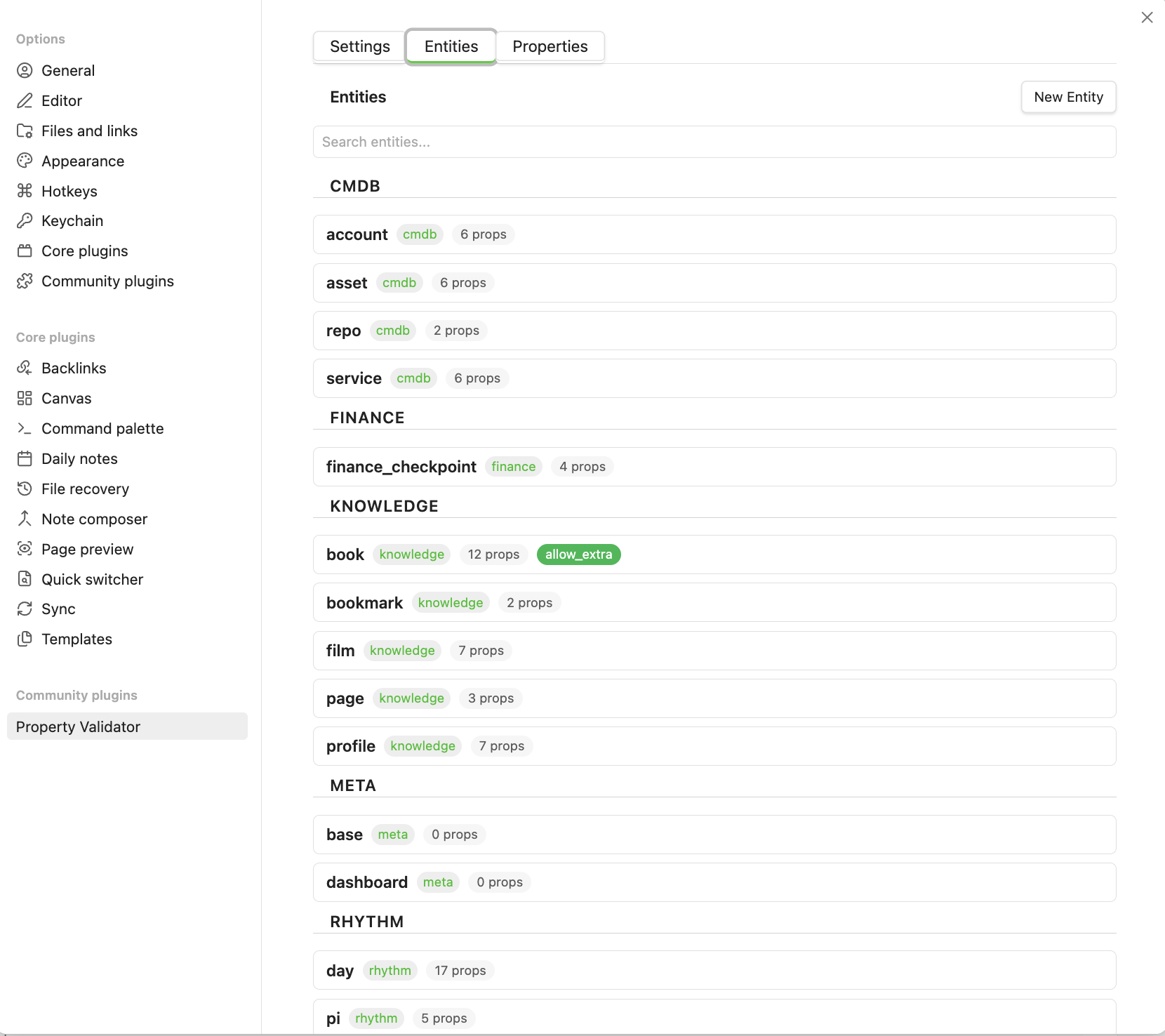
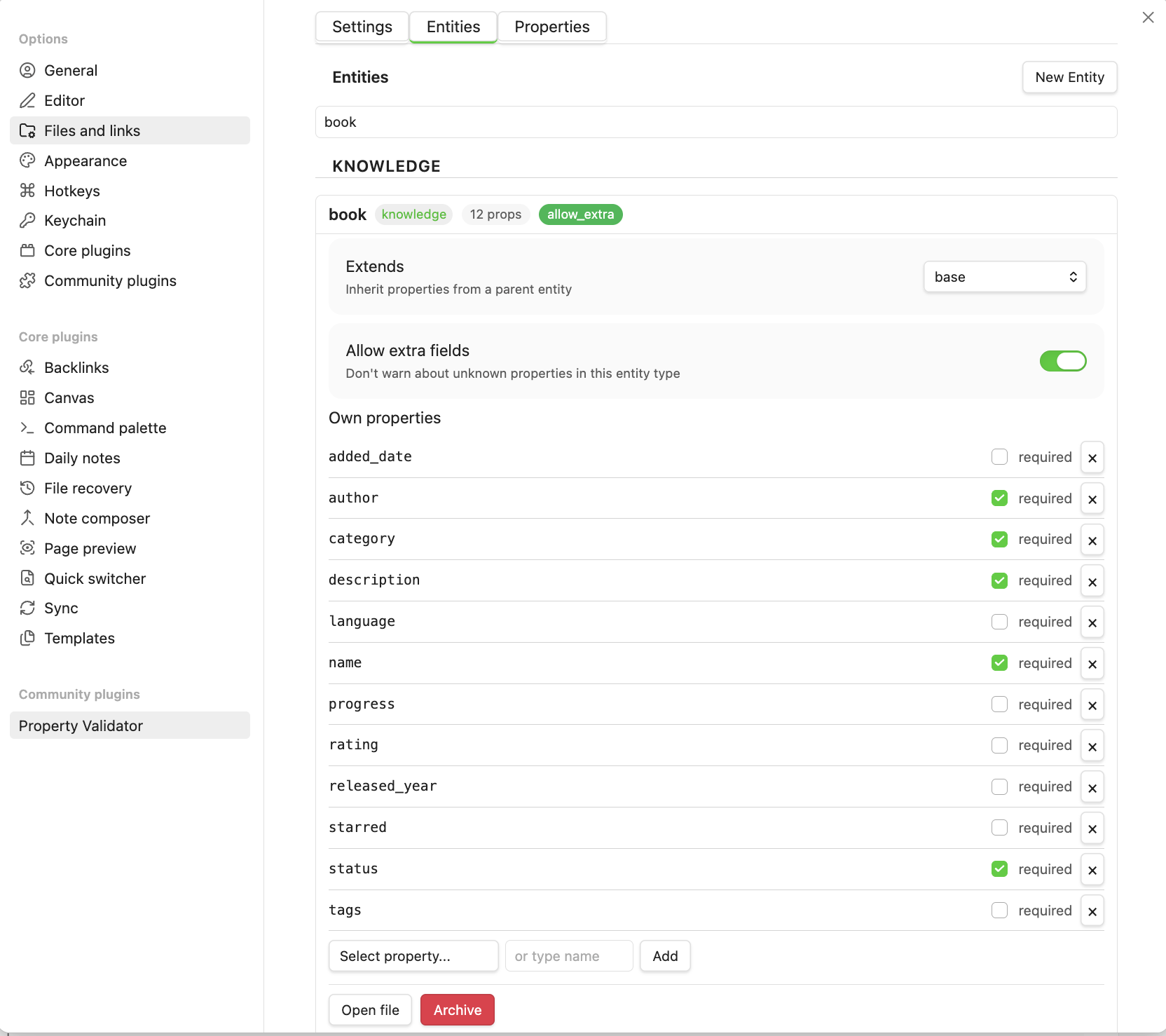
Lists all entities grouped by subdirectory. Click to expand:
- Extends — parent entity dropdown
- Allow extra — toggle for unknown fields
- Own properties — editable, with required toggles
- Inherited properties — read-only, grouped by source entity
- Open file / Archive buttons
Creating an entity
Click Create new entity. Enter name, parent, and properties.
See Schema reference > Entity files for the full format.
Editing
Changes auto-save (500ms debounce). To override an inherited property, add it to the child's own list.
Properties tab
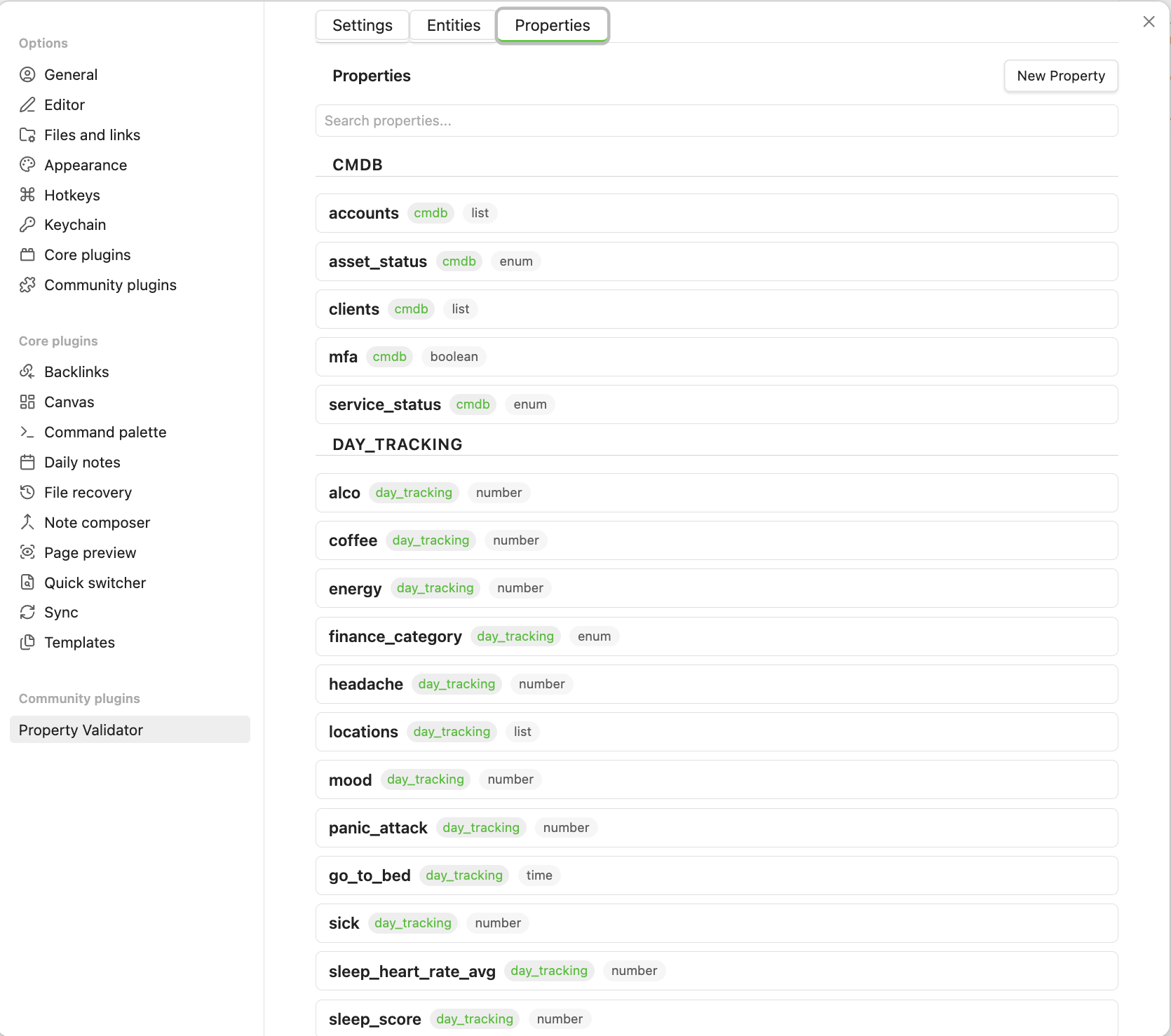
Lists all properties grouped by subdirectory. Click to expand:
- Type and type-specific constraints
- Nullable toggle
- Custom validator expression
- Open file / Archive buttons
Creating a property
Click Create new property. Fields depend on type:
| Type | Additional fields |
|---|---|
enum |
Allowed values list |
number |
Min, Max, Unit |
link, links, list |
Target type, folder, property, value |
See Schema reference > Property files for the full format.
Link constraints editor
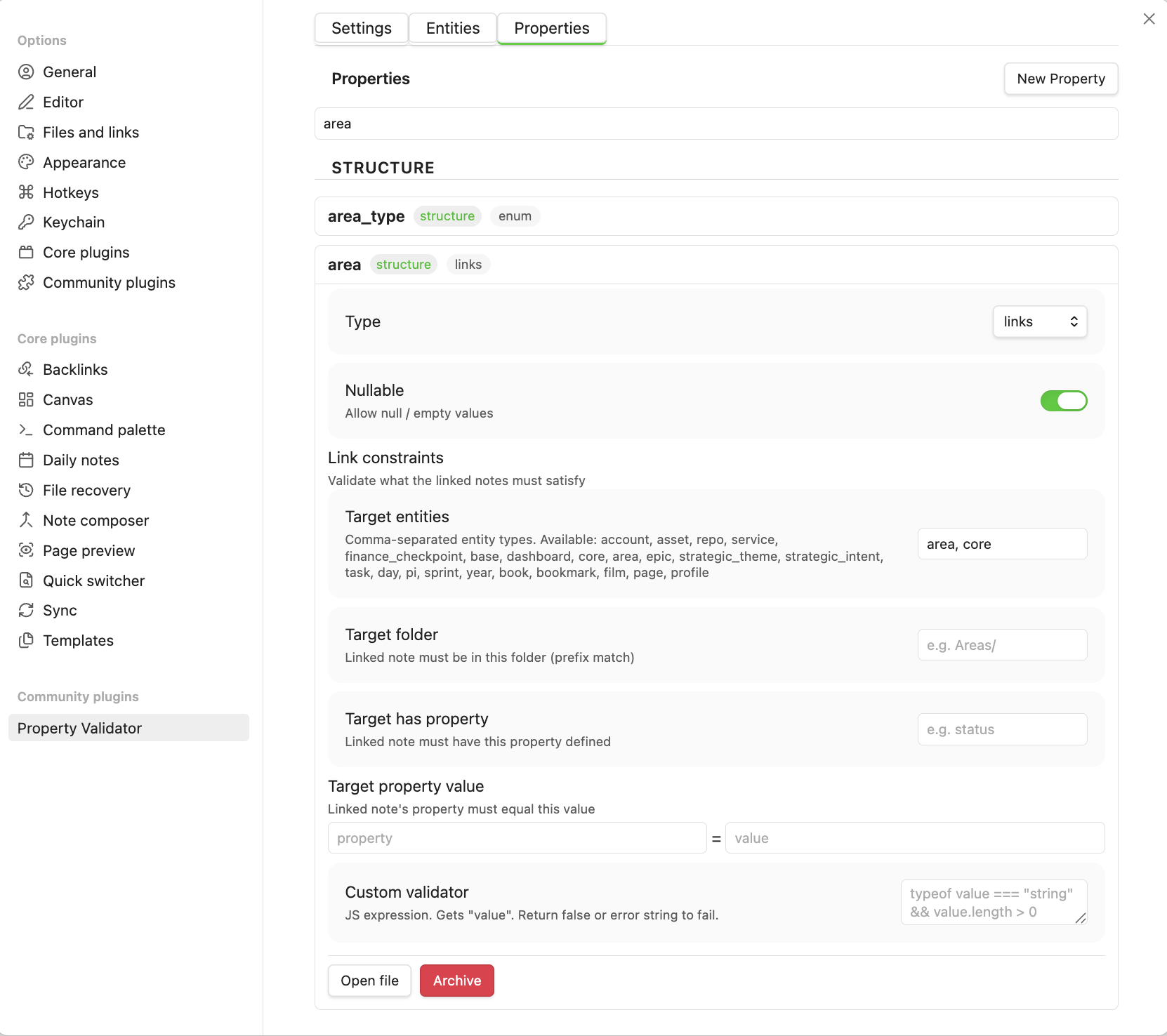
For link/links/list types:
- Target entity type — comma-separated (e.g.
area, project) - Target folder — prefix match (e.g.
Areas/) - Target has property — field must exist
- Target property value — field must equal value
Search
Both tabs have a search field at the top to filter by name.
Archiving
Click Archive on any entity or property to move it to _deprecated/. Archived files are not loaded by the plugin. No data is deleted.