Getting started
Installation
-
Build the plugin:
-
Copy to your vault:
-
Enable in Obsidian: Settings > Community plugins > Property Validator
Quick start
Create a schema and validate a note in 5 minutes.
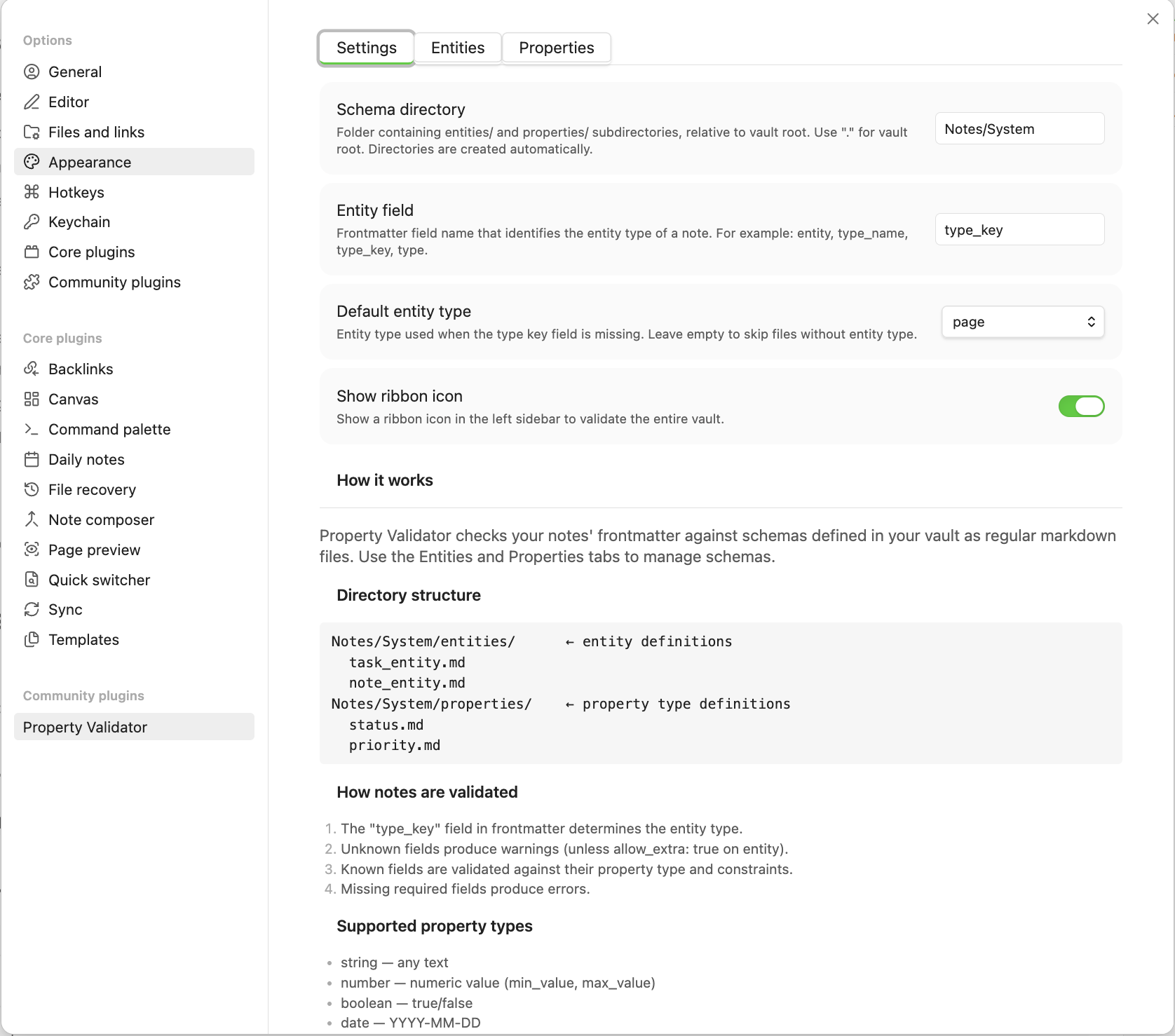
1. Set the schema directory
Go to Settings > Property Validator > Settings and set the Schema directory (e.g. System). The plugin creates entities/ and properties/ subdirectories automatically.
2. Create an entity
What is an entity?
An entity is a note type — like task, book, or person. It declares which frontmatter fields the note should have.
Open Settings > Property Validator > Entities tab and click Create new entity.
- Name:
task - Properties: add
status(required) andpriority(optional)
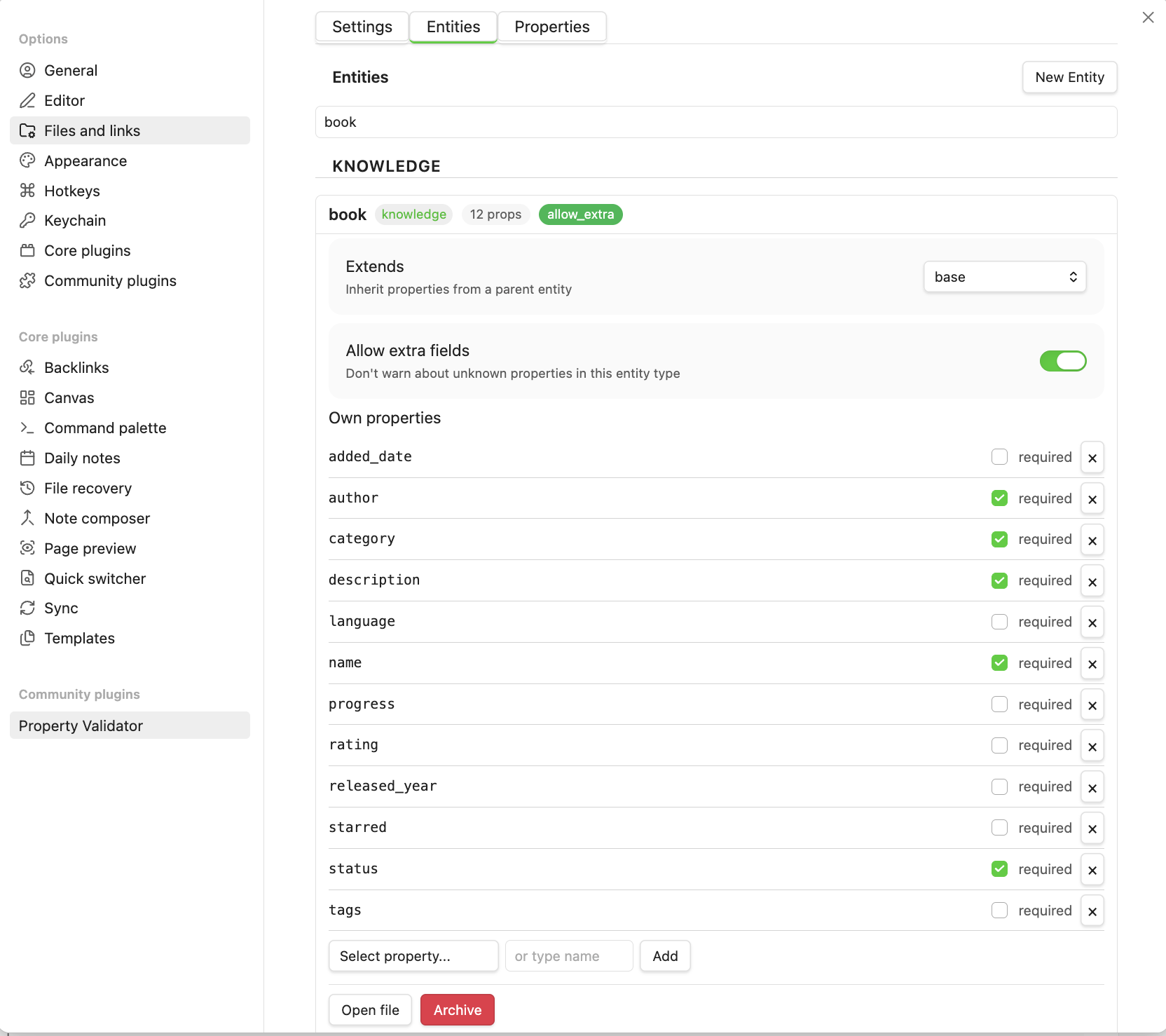
This creates System/entities/task_entity.md:
See Schema reference > Entity files for all available fields.
3. Create properties
What is a property?
A property is a validation rule for a field — it defines what values are allowed.
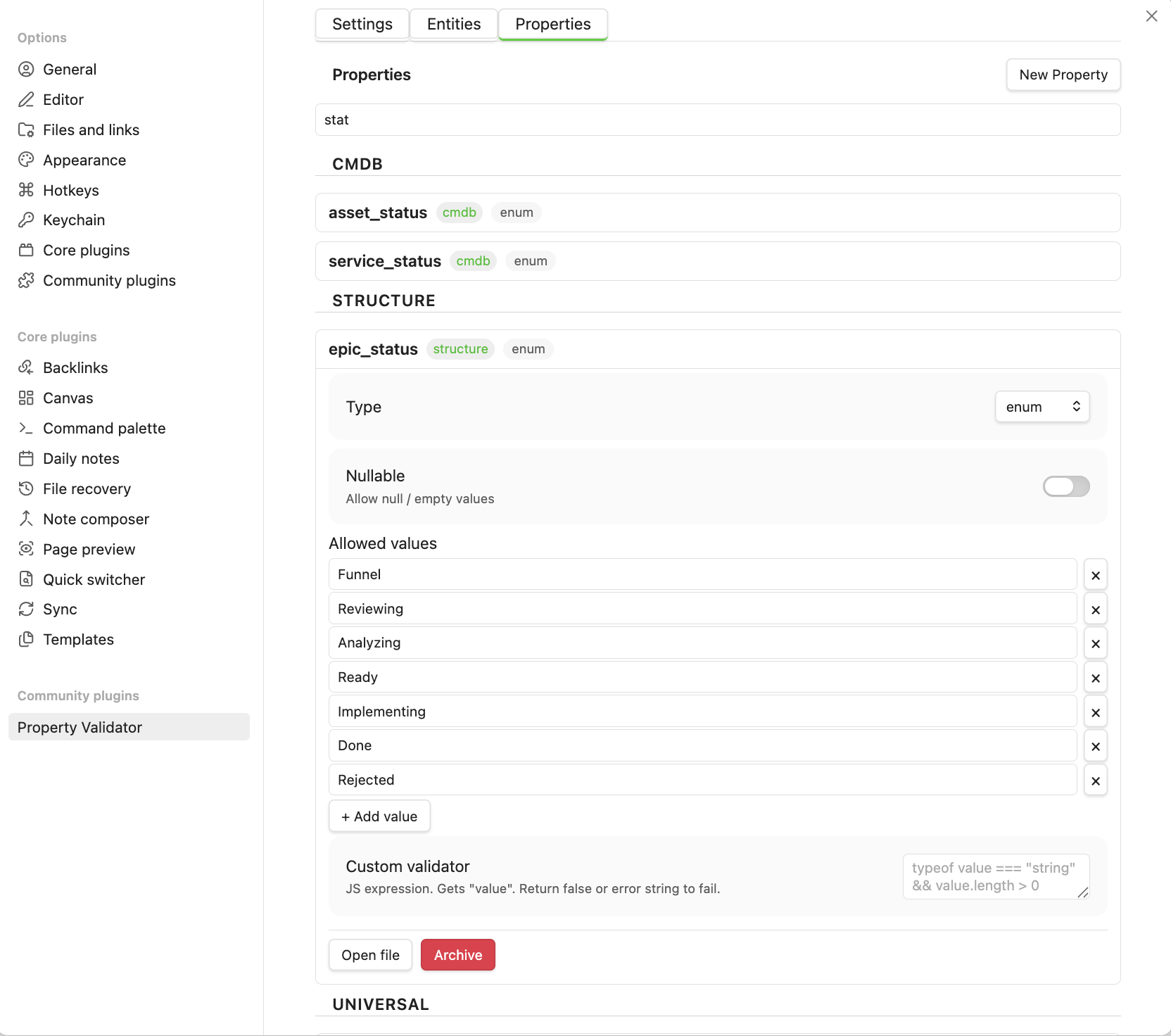
Open Settings > Property Validator > Properties tab and create two properties:
Status — an enum with allowed values:
- Name:
status - Type:
enum - Allowed values:
Backlog,In Progress,Done
Priority — another enum:
- Name:
priority - Type:
enum - Allowed values:
Low,Medium,High
See Schema reference > Property files for all available fields and types.
4. Validate a note
Open any note and add frontmatter:
---
entity: task
status: In Progress
priority: High
---
# My first task

This note is now validated against the task schema.
Note
The entity field tells the plugin which schema to use. You can change this field name in Configuration.
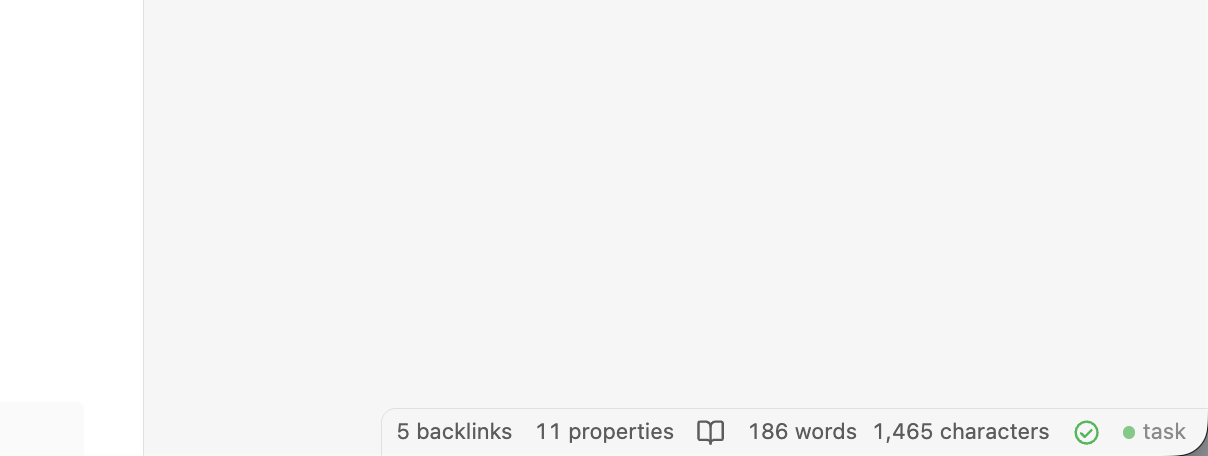
The status bar shows a green dot — the note is valid.
5. See validation in action
Change status to Urgent and save. The status bar turns red, and the results panel shows:
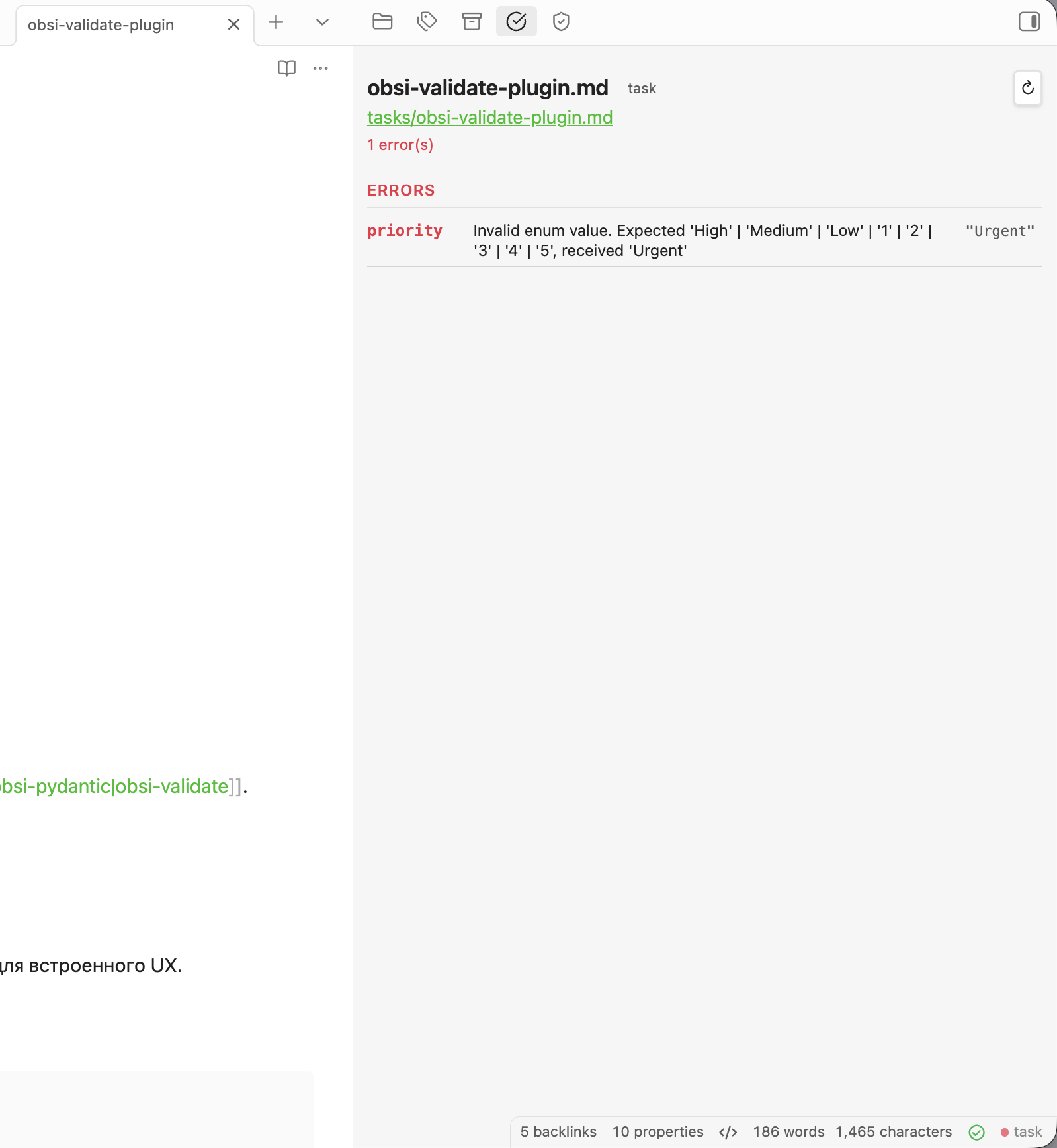
Remove the status field entirely. Since it's required, you get:
6. Validate the whole vault
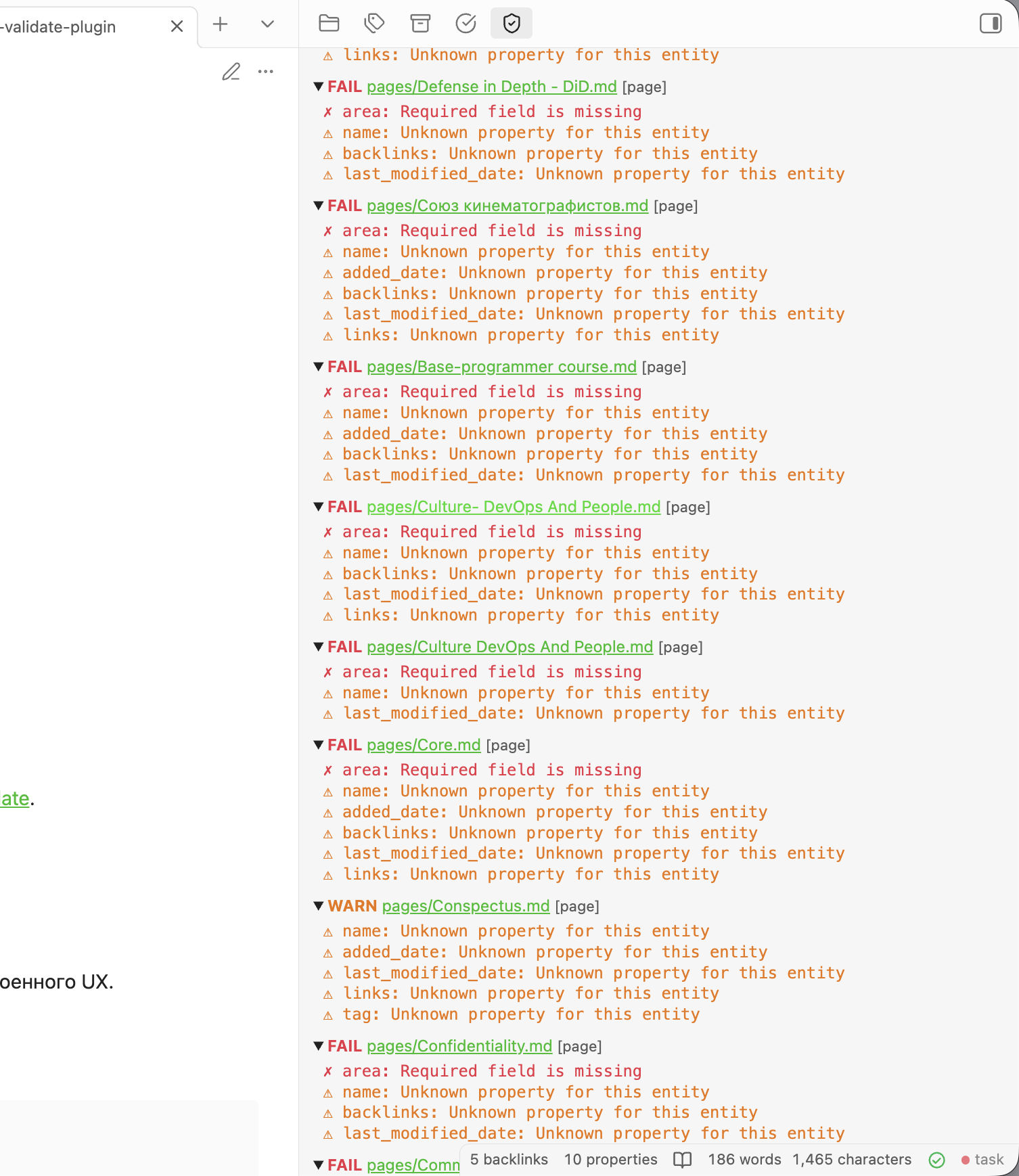
Use Command Palette > Validate vault to scan all files at once. The summary panel shows counts and lists only files with issues.
Next steps
- Schema reference — all entity and property fields, types, link constraints, inheritance
- Configuration — plugin settings and schema management UI